Best practices for coding with agents

Coding agents are changing how software gets built.
Models can now run for hours, complete ambitious multi-file refactors, and iterate until tests pass. But getting the most out of agents requires understanding how they work and developing new patterns.
This guide covers techniques for working with Cursor's agent. Whether you're new to agentic coding or looking to learn how our team uses Cursor, we'll cover the best practices for coding with agents.
Understanding agent harnesses
An agent harness is built on three components:
- Instructions: The system prompt and rules that guide agent behavior
- Tools: File editing, codebase search, terminal execution, and more
- Model: The agent model you pick for the task
Cursor's agent harness orchestrates these components for each model we support. We tune instructions and tools specifically for every frontier model based on internal evals and external benchmarks.
The harness matters because different models respond differently to the same prompts. A model trained heavily on shell-oriented workflows might prefer grep over a dedicated search tool. Another might need explicit instructions to call linter tools after edits. Cursor's agent handles this for you, so as new models are released, you can focus on building software.
Start with plans
The most impactful change you can make is planning before coding.
A study from the University of Chicago found that experienced developers are more likely to plan before generating code. Planning forces clear thinking about what you're building and gives the agent concrete goals to work toward.
Using Plan Mode
Press Shift+Tab in the agent input to toggle Plan Mode. Instead of immediately writing code, the agent will:
- Research your codebase to find relevant files
- Ask clarifying questions about your requirements
- Create a detailed implementation plan with file paths and code references
- Wait for your approval before building
Plans open as Markdown files you can edit directly to remove unnecessary steps, adjust the approach, or add context the agent missed.
Tip: Click "Save to workspace" to store plans in
.cursor/plans/. This creates documentation for your team, makes it easy to resume interrupted work, and provides context for future agents working on the same feature.
Not every task needs a detailed plan. For quick changes or tasks you've done many times before, jumping straight to the agent is fine.
Starting over from a plan
Sometimes the agent builds something that doesn't match what you wanted. Instead of trying to fix it through follow-up prompts, go back to the plan.
Revert the changes, refine the plan to be more specific about what you need, and run it again. This is often faster than fixing an in-progress agent, and produces cleaner results.
Managing context
As you get more comfortable with agents writing code, your job becomes giving each agent the context it needs to complete its task.
Let the agent find context
You don't need to manually tag every file in your prompt.
Cursor's agent has powerful search tools and pulls context on demand. When you ask about "the authentication flow," the agent finds relevant files through grep and semantic search, even if your prompt doesn't contain those exact words.
Keep it simple: if you know the exact file, tag it. If not, the agent will find it. Including irrelevant files can confuse the agent about what's important.
Cursor's agent also has helpful tools, like @Branch, which allow you to give the agent context about what you're working on. "Review the changes on this branch" or "What am I working on?" become natural ways to orient the agent to your current task.
When to start a new conversation
One of the most common questions: should I continue this conversation or start fresh?
Start a new conversation when:
- You're moving to a different task or feature
- The agent seems confused or keeps making the same mistakes
- You've finished one logical unit of work
Continue the conversation when:
- You're iterating on the same feature
- The agent needs context from earlier in the discussion
- You're debugging something it just built
Long conversations can cause the agent to lose focus. After many turns and summarizations, the context accumulates noise and the agent can get distracted or switch to unrelated tasks. If you notice the effectiveness of the agent decreasing, it's time to start a new conversation.
Reference past work
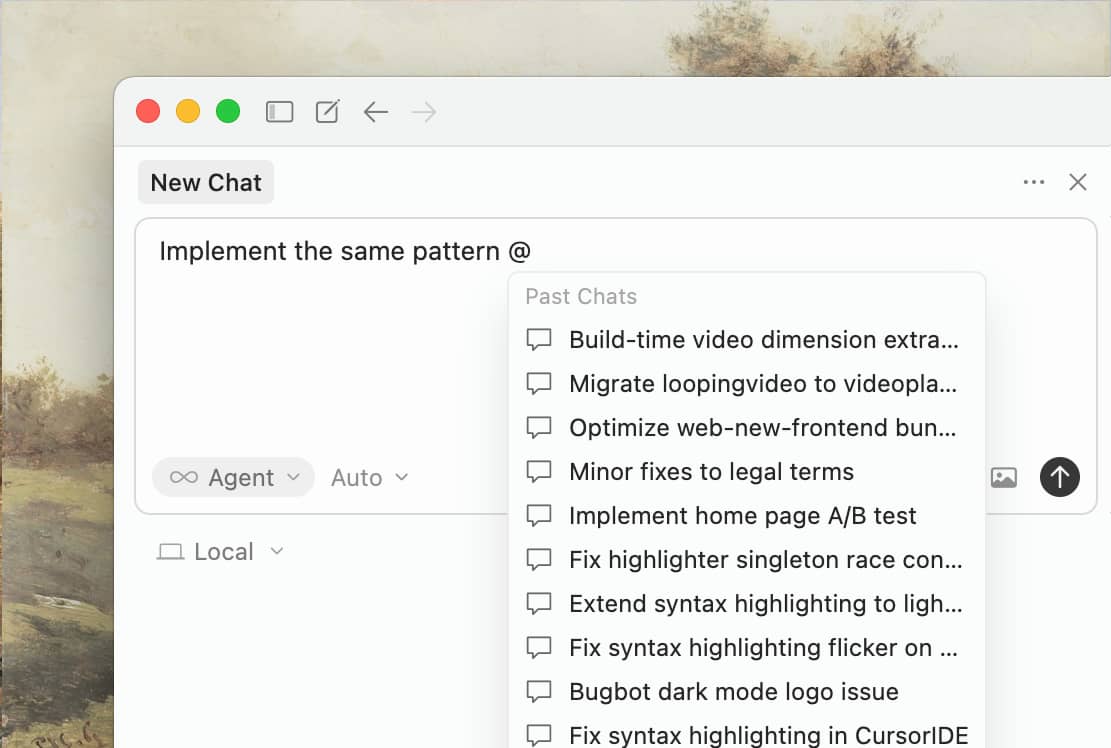
When you start a new conversation, use @Chats to reference previous work rather than copy-pasting the whole conversation. The agent can selectively read from the chat history to pull in only the context it needs.
This is more efficient than duplicating entire conversations.
Extending the agent
Cursor provides two main ways to customize agent behavior: Rules for static context that applies to every conversation, and Skills for dynamic capabilities the agent can use when relevant.
Rules: Static context for your project
Rules provide persistent instructions that shape how the agent works with your code. Think of them as always-on context that the agent sees at the start of every conversation.
Create rules as markdown files in .cursor/rules/:
# Commands

- `npm run build`: Build the project
- `npm run typecheck`: Run the typechecker
- `npm run test`: Run tests (prefer single test files for speed)

# Code style

- Use ES modules (import/export), not CommonJS (require)
- Destructure imports when possible: `import { foo } from 'bar'`
- See `components/Button.tsx` for canonical component structure

# Workflow

- Always typecheck after making a series of code changes
- API routes go in `app/api/` following existing patterns
Keep rules focused on the essentials: the commands to run, the patterns to follow, and pointers to canonical examples in your codebase. Reference files instead of copying their contents; this keeps rules short and prevents them from becoming stale as code changes.
What to avoid in rules:
- Copying entire style guides (use a linter instead)
- Documenting every possible command (the agent knows common tools)
- Adding instructions for edge cases that rarely apply
Tip: Start simple. Add rules only when you notice the agent making the same mistake repeatedly. Don't over-optimize before you understand your patterns.
Check your rules into git so your whole team benefits. When you see the agent make a mistake, update the rule. You can even tag @cursor on a GitHub issue or PR to have the agent update the rule for you.
Skills: Dynamic capabilities and workflows
Agent Skills extend what agents can do. Skills package domain-specific knowledge, workflows, and scripts that agents can invoke when relevant.
Skills are defined in SKILL.md files and can include:
- Custom commands: Reusable workflows triggered with
/in the agent input - Hooks: Scripts that run before or after agent actions
- Domain knowledge: Instructions for specific tasks the agent can pull in on demand
Unlike Rules which are always included, Skills are loaded dynamically when the agent decides they're relevant. This keeps your context window clean while giving the agent access to specialized capabilities.
Example: Long-running agent loop
One powerful pattern is using skills to create agents that run for extended periods, iterating until they achieve a goal. Here's how you might build a hook that keeps an agent working until all tests pass.
First, configure the hook in .cursor/hooks.json:
{
  "version": 1,
  "hooks": {
    "stop": [{ "command": "bun run .cursor/hooks/grind.ts" }]
  }
}
The hook script (.cursor/hooks/grind.ts) receives context from stdin and returns a followup_message to continue the loop:
import { readFileSync, existsSync } from "fs";

interface StopHookInput {
  conversation_id: string;
  status: "completed" | "aborted" | "error";
  loop_count: number;
}

const input: StopHookInput = await Bun.stdin.json();
const MAX_ITERATIONS = 5;

if (input.status !== "completed" || input.loop_count >= MAX_ITERATIONS) {
  console.log(JSON.stringify({}));
  process.exit(0);
}

const scratchpad = existsSync(".cursor/scratchpad.md")
  ? readFileSync(".cursor/scratchpad.md", "utf-8")
  : "";

if (scratchpad.includes("DONE")) {
  console.log(JSON.stringify({}));
} else {
  console.log(JSON.stringify({
    followup_message: `[Iteration ${input.loop_count + 1}/${MAX_ITERATIONS}] Continue working. Update .cursor/scratchpad.md with DONE when complete.`
  }));
}
This pattern is useful for:
- Running (and fixing) until all tests pass
- Iterating on UI until it matches a design mockup
- Any goal-oriented task where success is verifiable
Tip: Skills with hooks can integrate with security tools, secrets managers, and observability platforms. See the hooks documentation for partner integrations.
Agent Skills are currently only available in the nightly release channel. Open Cursor settings, select Beta, and then set your update channel to Nightly and restart.
Beyond coding, you can connect the agent to other tools you use daily. MCP (Model Context Protocol) lets the agent read Slack messages, investigate Datadog logs, debug errors from Sentry, query databases, and more.
Including images
The agent can process images directly from your prompts. Paste screenshots, drag in design files, or reference image paths.
Design to code
Paste a design mockup and ask the agent to implement it. The agent sees the image and can match layouts, colors, and spacing. You can also use the Figma MCP server.
Visual debugging
Screenshot an error state or unexpected UI and ask the agent to investigate. This is often faster than describing the problem in words.
The agent can also control a browser to take its own screenshots, test applications, and verify visual changes. See the Browser documentation for details.
Common workflows
Here are agent patterns that work well across different types of tasks.
Test-driven development
The agent can write code, run tests, and iterate automatically:
- Ask the agent to write tests based on expected input/output pairs. Be explicit that you're doing TDD so it avoids creating mock implementations for functionality that doesn't exist yet.
- Tell the agent to run the tests and confirm they fail. Explicitly say not to write implementation code at this stage.
- Commit the tests when you're satisfied with them.
- Ask the agent to write code that passes the tests, instructing it not to modify the tests. Tell it to keep iterating until all tests pass.
- Commit the implementation once you're satisfied with the changes.
Agents perform best when they have a clear target to iterate against. Tests allow the agent to make changes, evaluate results, and incrementally improve until it succeeds.
Codebase understanding
When onboarding to a new codebase, use the agent for learning and exploration. Ask the same questions you would ask a teammate:
- "How does logging work in this project?"
- "How do I add a new API endpoint?"
- "What edge cases does
CustomerOnboardingFlowhandle?" - "Why are we calling
setUser()instead ofcreateUser()on line 1738?"
The agent uses both grep and semantic search to look through the codebase and find answers. This is one of the fastest ways to ramp up on unfamiliar code.
Git workflows
Agents can search git history, resolve merge conflicts, and automate your git workflow.
For example, a /pr command that commits, pushes, and opens a pull request:
Create a pull request for the current changes.

1. Look at the staged and unstaged changes with `git diff`
2. Write a clear commit message based on what changed
3. Commit and push to the current branch
4. Use `gh pr create` to open a pull request with title/description
5. Return the PR URL when done
Commands are ideal for workflows you run many times per day. Store them as Markdown files in .cursor/commands/ and check them into git so your whole team can use them.
Other examples of commands we use:
/fix-issue [number]: Fetch issue details withgh issue view, find relevant code, implement a fix, and open a PR/review: Run linters, check for common issues, and summarize what might need attention/update-deps: Check for outdated dependencies and update them one by one, running tests after each
The agent can use these commands autonomously, so you can delegate multi-step workflows with a single / invocation.
Reviewing code
AI-generated code needs review, and Cursor provides multiple options.
During generation
Watch the agent work. The diff view shows changes as they happen. If you see the agent heading in the wrong direction, click Stop to cancel and redirect.
Agent review
After the agent finishes, click Review → Find Issues to run a dedicated review pass. The agent analyzes proposed edits line-by-line and flags potential problems.
For all local changes, open the Source Control tab and run Agent Review to compare against your main branch.
Bugbot for pull requests
Push to source control to get automated reviews on pull requests. Bugbot applies advanced analysis to catch issues early and suggest improvements on every PR.
Architecture diagrams
For significant changes, ask the agent to generate architecture diagrams. Try prompting: "Create a Mermaid diagram showing the data flow for our authentication system, including OAuth providers, session management, and token refresh." These diagrams are useful for documentation and can reveal architectural issues before code review.
Running agents in parallel
Cursor makes it easy to run many agents in parallel without them interfering with one another. We've found that having multiple models attempt the same problem and picking the best result significantly improves the final output, especially for harder tasks.
Native worktree support
Cursor automatically creates and manages git worktrees for parallel agents. Each agent runs in its own worktree with isolated files and changes, so agents can edit, build, and test code without stepping on each other.
To run an agent in a worktree, select the worktree option from the agent dropdown. When the agent finishes, click Apply to merge its changes back to your working branch.
Run multiple models at once
A powerful pattern is running the same prompt across multiple models simultaneously. Select multiple models from the dropdown, submit your prompt, and compare the results side by side. Cursor will also suggest which solution it believes is best.
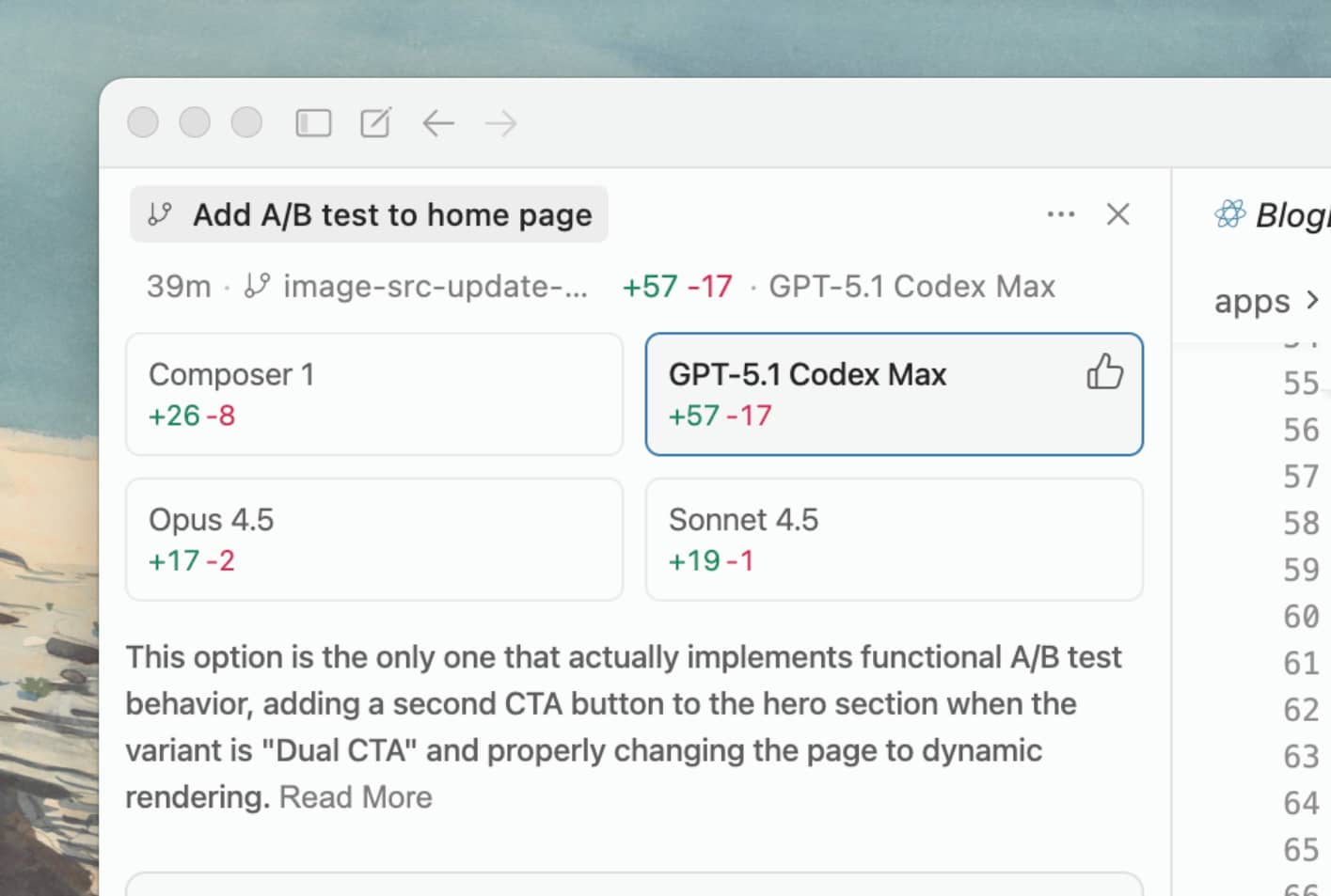
This is especially useful for:
- Hard problems where different models might take different approaches
- Comparing code quality across model families
- Finding edge cases one model might miss
When running many agents in parallel, configure notifications and sounds so you know when they finish.
Delegating to cloud agents
Cloud agents work well for tasks you'd otherwise add to a todo list:
- Bug fixes that came up while working on something else
- Refactors of recent code changes
- Generating tests for existing code
- Documentation updates
You can switch between local and cloud agents depending on the task. Start cloud agents from cursor.com/agents, the Cursor editor, or from your phone. Check on sessions from the web or mobile while you're away from your desk. Cloud agents run in remote sandboxes, so you can close your laptop and check results later.
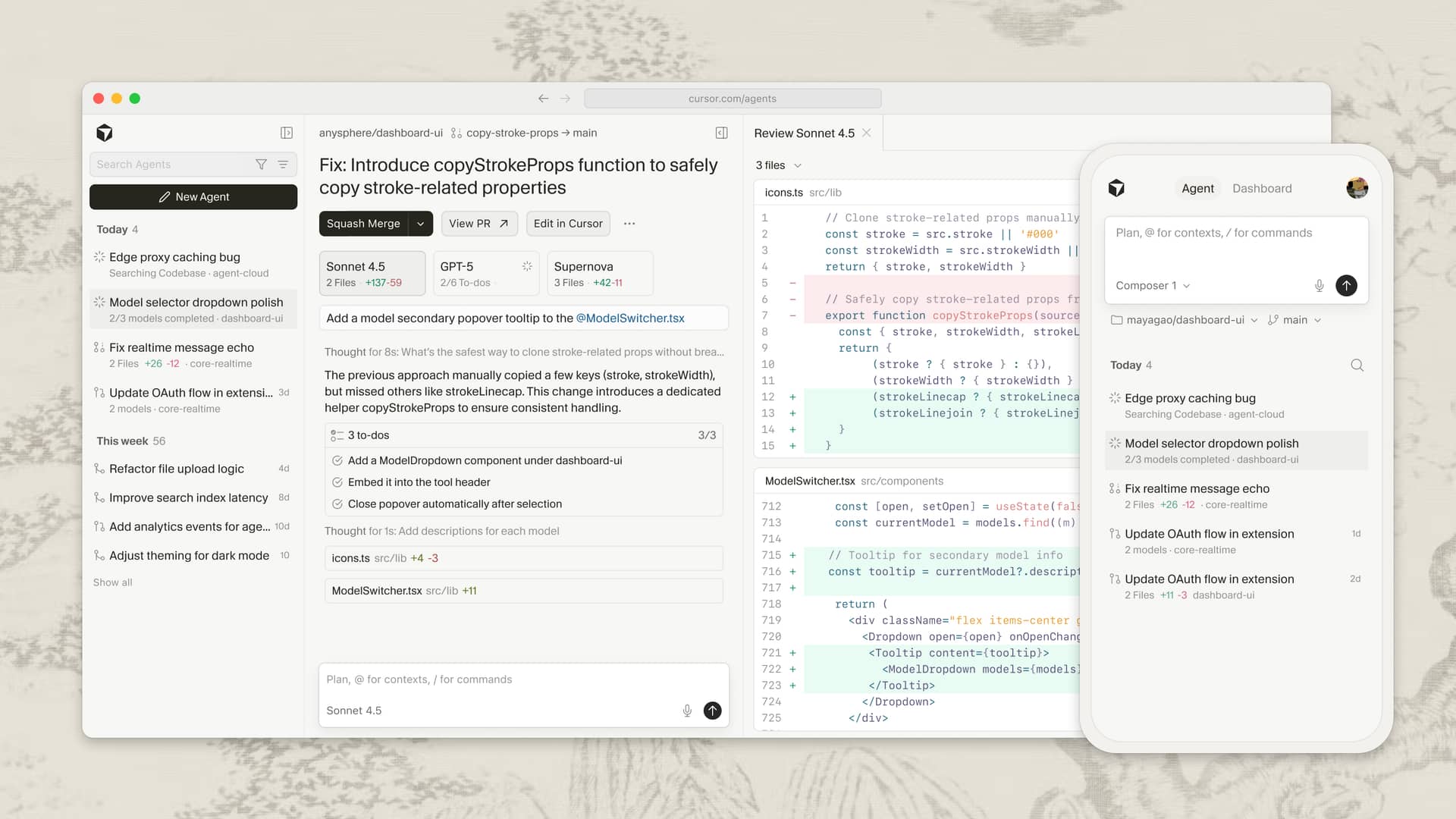
Here's how cloud agents work under the hood:
- Describe the task and any relevant context
- The agent clones your repo and creates a branch
- It works autonomously, opening a pull request when finished
- You get notified when it's done (via Slack, email, or the web interface)
- Review the changes and merge when ready
Tip: You can trigger agents from Slack with "@Cursor". Learn more.
Debug Mode for tricky bugs
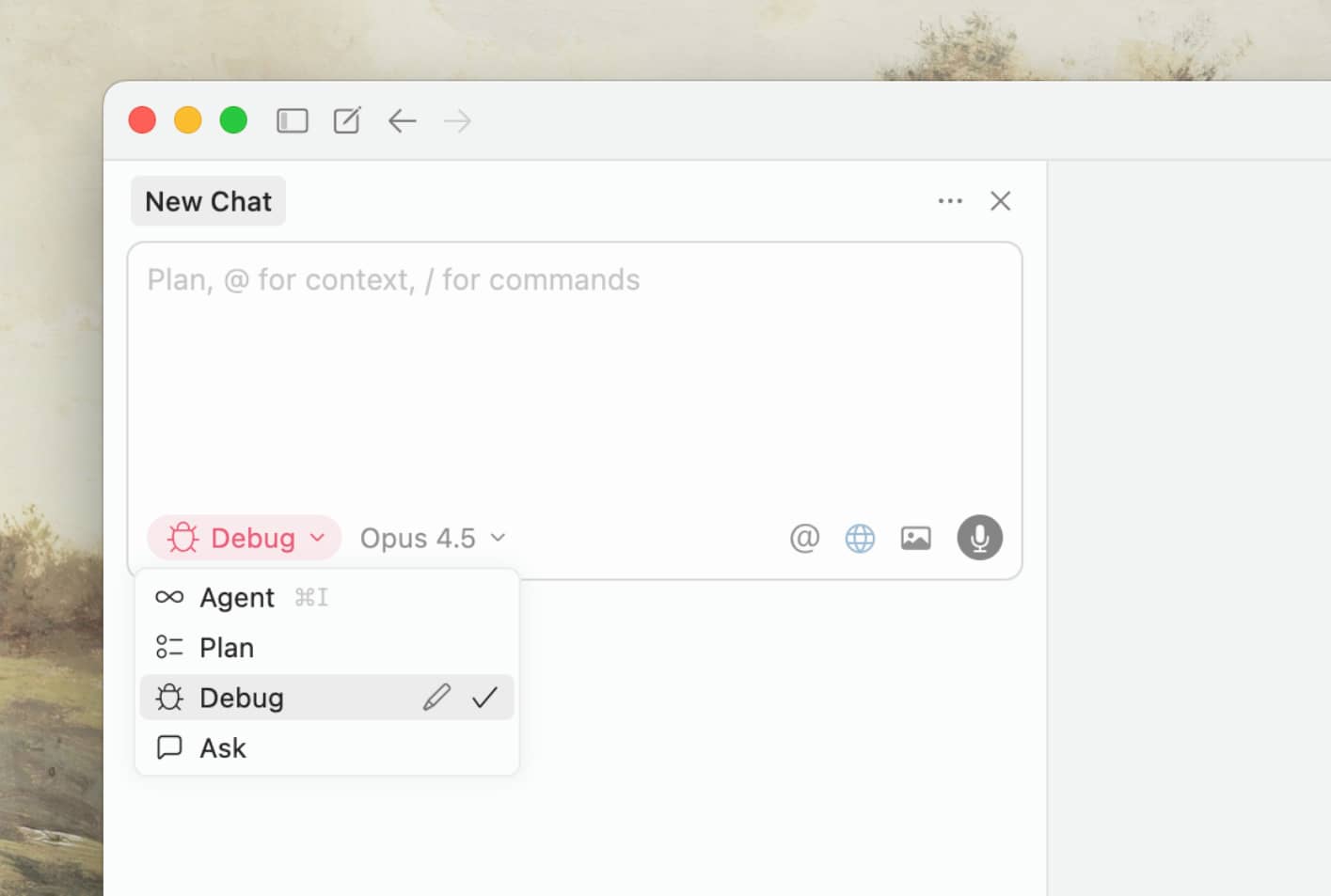
When standard agent interactions struggle with a bug, Debug Mode provides a different approach.
Instead of guessing at fixes, Debug Mode:
- Generates multiple hypotheses about what could be wrong
- Instruments your code with logging statements
- Asks you to reproduce the bug while collecting runtime data
- Analyzes actual behavior to pinpoint the root cause
- Makes targeted fixes based on evidence
This works best for:
- Bugs you can reproduce but can't figure out
- Race conditions and timing issues
- Performance problems and memory leaks
- Regressions where something used to work
The key is providing detailed context about how to reproduce the issue. The more specific you are, the more useful instrumentation the agent adds.
Developing your workflow
The developers who get the most from agents share a few traits:
They write specific prompts. The agent's success rate improves significantly with specific instructions. Compare "add tests for auth.ts" with "Write a test case for auth.ts covering the logout edge case, using the patterns in __tests__/ and avoiding mocks."
They iterate on their setup. Start simple. Add rules only when you notice the agent making the same mistake repeatedly. Add commands only after you've figured out a workflow you want to repeat. Don't over-optimize before you understand your patterns.
They review carefully. AI-generated code can look right while being subtly wrong. Read the diffs and carefully review. The faster the agent works, the more important your review process becomes.
They provide verifiable goals. Agents can't fix what they don't know about. Use typed languages, configure linters, and write tests. Give the agent clear signals for whether changes are correct.
They treat agents as capable collaborators. Ask for plans. Request explanations. Push back on approaches you don't like.
Agents are improving rapidly. While the patterns will evolve with newer models, we hope this helps you be more productive today when working with coding agents.
Get started with Cursor's agent to try these techniques.


