Computer use and desktop sharing
Computer use lets an agent on a Self-Hosted Machines worker click, type, take screenshots, and drive applications with a UI. Agents can also drive a browser when the worker has Chrome or Chromium installed. It works on macOS and Linux workers, for both My Machines and Team Pools. Desktop sharing lets authorized viewers watch or take control of a Linux agent desktop from Cursor. For the product behavior on managed Cloud Agents, see Capabilities.
Computer use and desktop sharing are new. Install or update to the latest
Cursor CLI before you follow this guide: run agent update, or reinstall
with the steps in Install the CLI.
Both features are explicit opt-ins and are never enabled by the server.
Computer use runs on macOS and Linux workers. Desktop sharing
(--share-desktop) is Linux-only.
Enable computer use
Start the worker with --computer-use. Worker flags go before start:
agent worker --computer-use startPool workers take the same flag:
agent worker --pool gpu --computer-use startWhat happens next depends on the operating system. On macOS, the worker drives the signed-in desktop session through a helper app called Cursor Computer Use, and you grant it two macOS privacy permissions. On Linux, the worker uses an X11 display and needs desktop packages installed first.
On Enterprise teams, an admin can turn computer use off with the Computer Use switch under MCP Configuration in team settings. The switch is on by default. While it's off, or while all MCP servers are disabled for the team, agents on your workers start without computer use, even when the worker runs with --computer-use.
macOS
On macOS, computer use runs through Cursor Computer Use, a small helper app the CLI manages for you. It clicks, types, and captures the screen of the desktop session the worker runs in. The Cursor desktop app is not required on the worker.
- Installed by the CLI. The first
agent worker --computer-use starton a Mac downloads Cursor Computer Use fromdownloads.cursor.comand installs it as~/.cursor/cursor-computer-use/Cursor Computer Use.appwhen it is missing. - One app identity. Bundle identifier
co.anysphere.cursor-computer-use, signed with Apple Team IDDCNK4UB866. This is a different app from Cursor Agent Helper (co.anysphere.cursor.agent-helper), which--share-desktopuses. - Needs a signed-in desktop. The worker uses the login GUI session of the macOS user that runs it.
--displayand virtual displays are Linux only. - Needs two permissions. macOS requires Accessibility (to move the mouse and type) and Screen Recording (to take screenshots) for Cursor Computer Use. The worker doesn't check or request these for you. Until you grant them, the agent's clicks and screenshots fail.
Install Cursor Computer Use
Start the worker with computer use
Sign in to the Mac as the user that will run the worker, then start it:
agent worker --computer-use --name "build-mac-01" startFor a pool worker, add --pool:
agent worker --pool --computer-use startThe first start installs Cursor Computer Use if it is missing, then macOS prompts for permissions.
Grant Accessibility and Screen Recording to Cursor Computer Use
Open System Settings → Privacy & Security. Under Accessibility, turn on Cursor Computer Use. Under Screen & System Audio Recording (called Screen Recording on older macOS versions), turn on Cursor Computer Use.
Grant the permissions to Cursor Computer Use, not to Terminal, your shell, or the Cursor app. Permissions you already granted to those apps don't carry over. If macOS asks you to quit and reopen the app after granting Screen Recording, stop and restart the worker.
Verify the install and the permissions
agent worker debugThe report confirms Cursor Computer Use is installed. It doesn't report permission state, so test that too: start the worker and send a task from cursor.com/agents that asks the agent to open a browser, visit a page, and take a screenshot. The screenshot shows up in the chat when both permissions are in place.
macOS 15 (Sequoia) and later periodically ask the logged-in user to
re-confirm Screen Recording for apps that capture the screen directly. If
screenshots stop working on a long-running worker, look for a pending
"Allow For One Month" prompt in the GUI session and approve it, then run
agent worker debug again.
Grant permissions the right way
Both permissions are granted to a specific app by the signed-in user. A few rules keep the setup working across restarts, updates, and fleets:
- Grant to Cursor Computer Use. macOS keys each permission to the app's bundle identifier (
co.anysphere.cursor-computer-use) and code signing requirement. Granting Accessibility or Screen Recording to Terminal, iTerm,agent, Cursor, or Cursor Agent Helper does nothing for computer use. - Grant as the worker's user. Sign in as the macOS account that runs the worker before you grant permissions or take a snapshot. Screen Recording approvals belong to that user account.
- Keep a desktop session alive. The worker needs a signed-in GUI session. On machines that reboot unattended, turn on automatic login for the worker's user and keep the display awake in System Settings → Lock Screen and Energy.
- Let the CLI manage the app. Install and update Cursor Computer Use only through
agent worker --computer-use start. Don't copy, re-sign, or rebuild the app; a changed signing identity makes macOS treat it as a new app and your grants stop applying. - Re-test after changes. After a macOS upgrade or a CLI update that replaces Cursor Computer Use, run a screenshot task again.
Don't script around the prompts. Editing the macOS privacy database or disabling System Integrity Protection breaks the protections your Mac relies on and isn't supported. Use System Settings or an MDM profile instead.
Use an app bundle you deploy
If your MDM or imaging process already places Cursor Computer Use on the machine, point the worker at that bundle instead of letting the CLI download one. Set CUA_SERVICE_APP in the environment of the agent worker process (for example, in the launchd plist that starts it) to the path of the .app bundle. The worker uses that bundle and skips the download.
Grants follow the app's code-signing identity and install location. If you point CUA_SERVICE_APP at a bundle in a different location, or swap in a build signed with a different identity, macOS treats it as a new app and asks for Accessibility and Screen Recording again.
Manage permissions with MDM
If your Macs are enrolled in an MDM, build a Privacy Preferences Policy Control (PPPC) profile for Cursor Computer Use. Cursor doesn't ship a .mobileconfig today. Apple limits what a profile can do for each permission:
| Permission | Profile support | What to do |
|---|---|---|
| Accessibility | A profile can allow it silently on most macOS versions. Apple deprecates silent allow for Accessibility starting with macOS 26.2. | Set Allowed for co.anysphere.cursor-computer-use under the Accessibility service. On macOS 26.2 and later, plan for a user to approve it in System Settings. |
| Screen Recording | A profile can't allow it. Apple requires a person to approve it in System Settings. | Set AllowStandardUserToSetSystemService for co.anysphere.cursor-computer-use under the ScreenCapture service so a standard (non-admin) user can approve it without an administrator password. |
Each payload entry needs the bundle identifier, the Team ID (DCNK4UB866), and the code requirement. Read the code requirement from the app the CLI installed so it matches the build you ship:
codesign -d -r - ~/.cursor/cursor-computer-use/Cursor\ Computer\ Use.appBecause Screen Recording always needs a human approval, plan for one approval per image rather than one per machine. See the next section.
Prepare a fleet: grant once, then image
Permissions persist on the machine, so grant them once on a template Mac, prove they work, and snapshot it. Every worker restored from that image comes up with computer use ready, as long as the app, its path, and the logged-in user stay the same. The pattern is grant, verify, snapshot.
Prepare the template
Sign in as the worker's user. Install the CLI and sign in or set the pool API key. Enable automatic login for this user so the desktop session exists after a reboot.
Install and grant
Run agent worker --computer-use start once so the CLI installs Cursor Computer Use. Grant Accessibility and Screen Recording to Cursor Computer Use, or push your PPPC profile and approve Screen Recording. Stop the worker.
Verify
agent worker debugConfirm the report shows Cursor Computer Use installed. Then start the worker and run a task that takes a screenshot and clicks something in an app. Continue only when the screenshot comes back and the click lands; agent worker debug alone doesn't prove the permissions are granted.
Snapshot
Take the VM snapshot or disk image from this state. Restore it for each worker and start the worker with --computer-use under launchd or your process manager.
Re-grant and re-snapshot when:
- A CLI update replaces Cursor Computer Use with a build whose signing identity changed. Screenshots and clicks fail until you grant again.
- The worker runs as a different macOS user than the one that granted the permissions.
- You upgrade the template to a new macOS major version. Run the screenshot test again and grant again if it fails.
Linux
On Linux, computer use uses an X11 display. The worker reuses a display you already run, or creates its own.
Install dependencies
On each Linux worker, install the desktop packages. Cursor does not install system packages for you:
sudo apt-get install -y --no-install-recommends \ dbus-x11 ffmpeg tigervnc-standalone-server \ x11-utils x11-xserver-utils xdotool xfce4xdotool, ffmpeg, and the X11 utilities are always required. tigervnc-standalone-server and xfce4 are needed when the worker creates a desktop itself: the managed display for computer use on headless machines, and the isolated desktop for desktop sharing.
Install Chrome or Chromium (optional, recommended) for browser computer use.
For pools, bake the packages into your worker image so every machine comes up ready.
Choose the X11 display
The worker resolves the display for computer use in this order:
--display <display>. Require an existing X11 display, for example:0. If the display isn't reachable, worker start fails instead of falling back.- Inherited
DISPLAY. Without--display, the worker reuses a reachableDISPLAYfrom its environment. If it isn't reachable, the worker falls back to a managed desktop. - Managed desktop. With no display configured, the worker starts its own TigerVNC desktop running an Xfce session. This is the default on headless machines and needs the
tigervnc-standalone-serverandxfce4packages.
# Reuse a desktop you already runagent worker --computer-use --display :0 start# Let the worker create a managed desktop (headless machines)agent worker --computer-use startShare the agent desktop
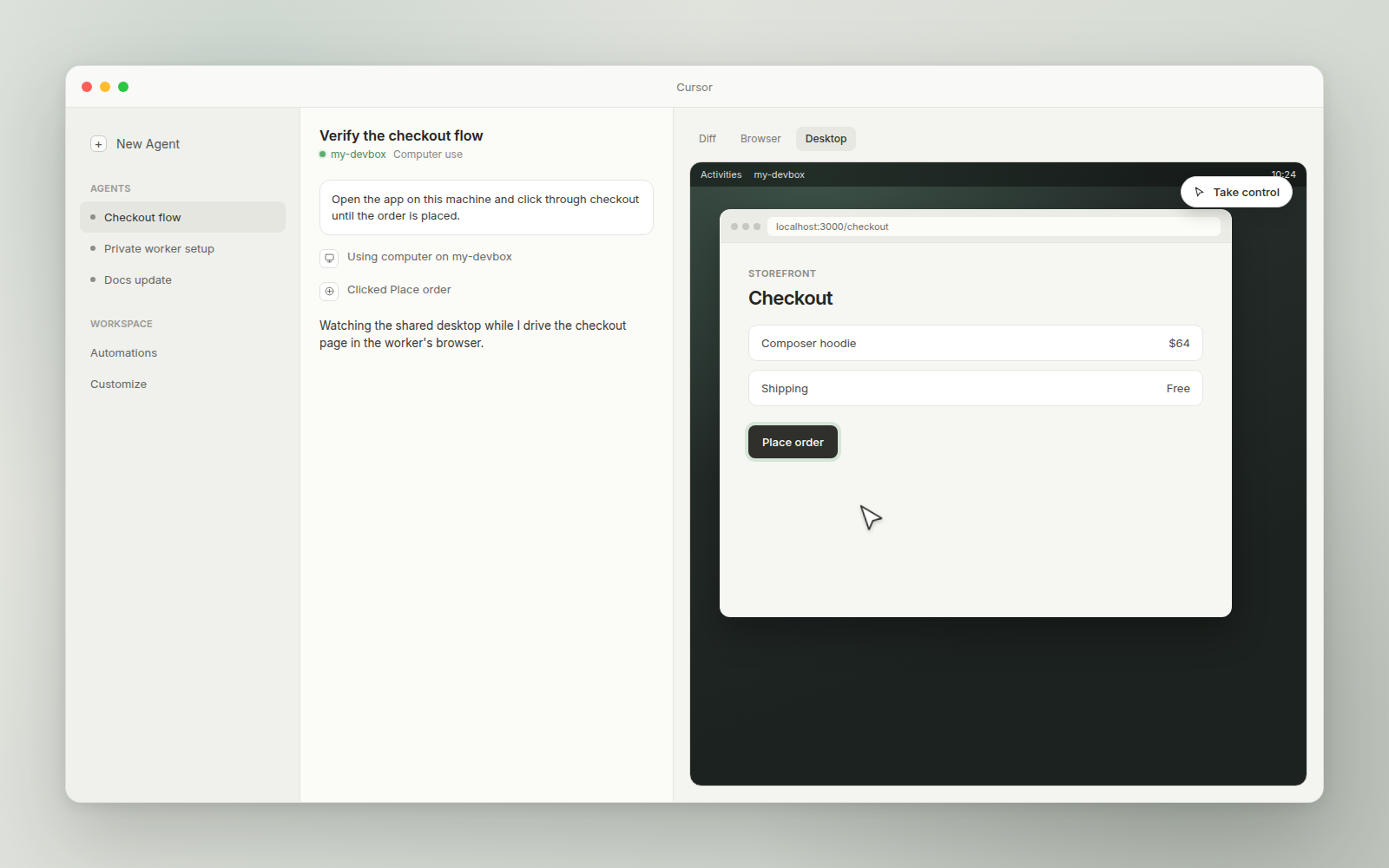
Desktop sharing is separate from computer use and is Linux-only. To let authorized viewers watch or control the agent desktop from Cursor, add --share-desktop:
agent worker --computer-use --share-desktop start--share-desktop takes an optional mode: view (watch only) or view_and_control (viewers can take mouse and keyboard control, the default). Sharing uses a worker-created, isolated agent desktop, not the machine's own session, and requires tigervnc-standalone-server. A fail-closed input filter on the machine enforces control, and clipboard transfer stays blocked.
Pixels leave the machine only through the worker's existing outbound connection. No inbound ports open.
Verify the setup
Run the preflight report:
agent worker debugOn macOS, the report shows whether Cursor Computer Use is installed. It doesn't check Accessibility or Screen Recording, so verify those with a real task: ask the agent to take a screenshot and click something. On Linux, the report checks each required binary, whether the configured display is reachable, and whether the worker can fall back to a managed desktop.
Run agent worker debug to confirm Cursor Computer Use is installed.
If the install failed, check that the worker can reach
downloads.cursor.com. If it is installed, the permissions are missing:
grant Accessibility and Screen Recording to Cursor Computer Use in
System Settings → Privacy & Security, restart the worker, and run the
task again. The worker doesn't check these permissions for you.
macOS attaches Accessibility and Screen Recording to a specific app. The
worker drives the desktop through Cursor Computer Use
(co.anysphere.cursor-computer-use), so that app needs the permissions,
not the terminal that launched agent, the Cursor app, or Cursor Agent
Helper (co.anysphere.cursor.agent-helper), which only handles
--share-desktop.
No. Apple doesn't let a profile allow Screen Recording. A profile can set
AllowStandardUserToSetSystemService so a standard user can approve it
without an administrator, and you can approve once on a template Mac and
snapshot it.
No. The CLI installs Cursor Computer Use on its own. Workers commonly run on Macs with no Cursor app installed.
Next steps
- My Machines: connect a personal Mac or Linux machine.
- Team Pools: shared workers and the full
agent workerflag reference. - API reference: endpoints for workers, pools, the pending-request queue, and worker tokens.
- Cloud Agent capabilities: desktop and browser control on managed Cloud Agents.