Bring your own machine quickstart
Connect a personal Linux or macOS laptop, devbox, or VM to your Cursor account as a worker through My Machines.
My Machines requires a personal credential: browser login or a personal user API key. Pool workers authenticate differently. See Pools.
Install the Cursor CLI
curl https://cursor.com/install -fsS | bashConfirm the CLI is available:
agent --versionSign in with your Cursor account
agent loginThis opens a browser window. After you authenticate, the CLI stores a token locally.
Connect the machine to Cursor
Run the worker from the repository you want it to serve:
cd /path/to/repoagent worker startKeep this process running. The machine stays connected until you stop it.
You can name the machine with --name:
agent worker --name "my-devbox" startIf the machine does not appear or a session cannot start, run agent worker debug. The report checks authentication, worker policy, repository labels, and whether Cursor can see the worker.
Send a request to your worker
Open the Cursor app, cursor.com/agents, or the Cursor mobile app, and select the machine's name under My Machines.
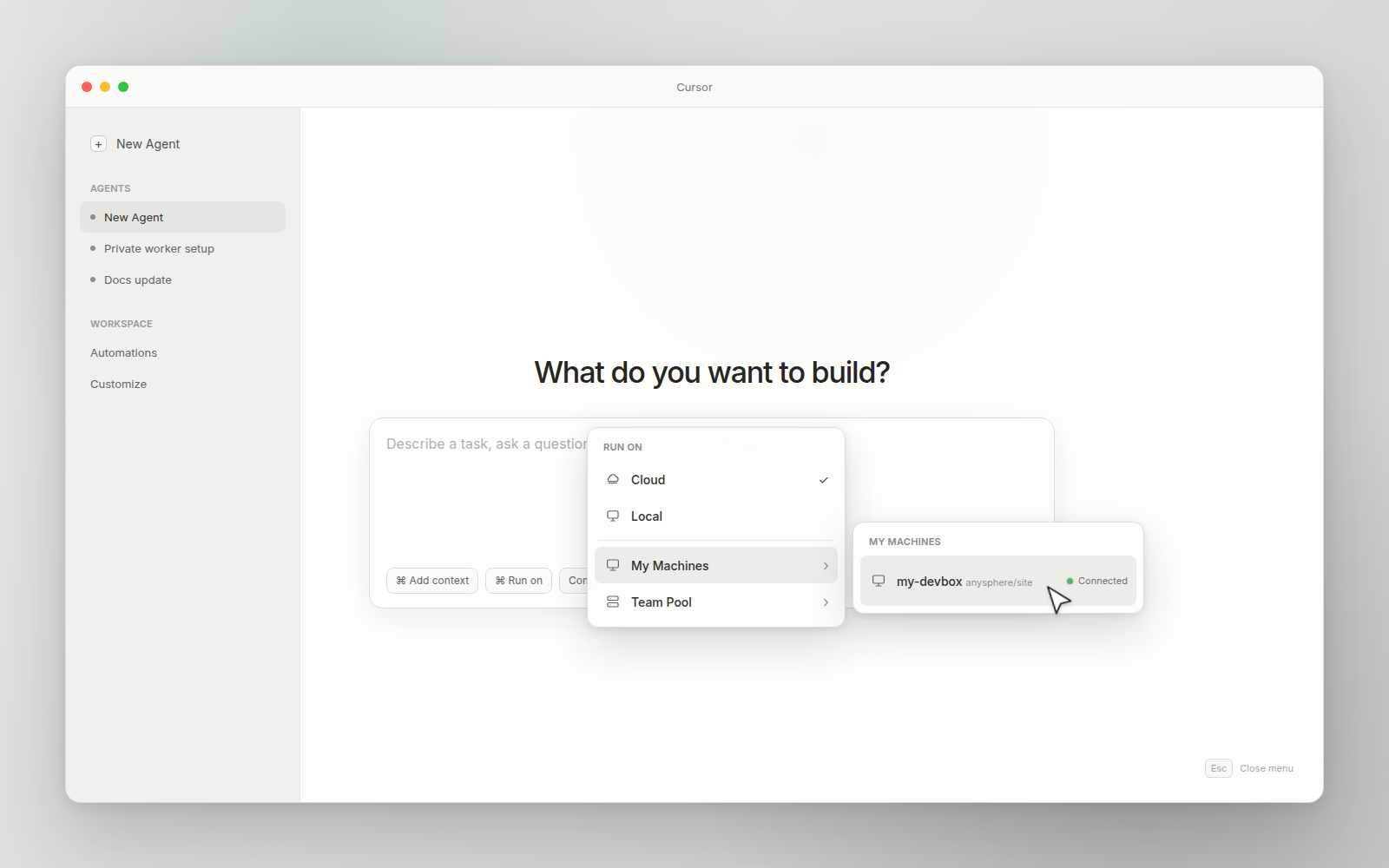
Ask the agent to do something that proves it's running on your machine. Try "What machine are you running on?", or have it create a file and watch the file appear on the machine.
Enable computer use (optional)
Computer use lets the agent click, take screenshots, type, and drive applications with a UI. Agents can also drive a browser when the worker has Chrome or Chromium installed.
Computer use is off by default and currently requires a Linux worker. Install the dependencies:
sudo apt-get install -y --no-install-recommends \ dbus-x11 ffmpeg tigervnc-standalone-server \ x11-utils x11-xserver-utils xdotool xfce4Then stop the worker from step 3 and restart with --computer-use:
agent worker --computer-use startTo let authorized viewers watch or control the agent desktop from Cursor, add --share-desktop.
Check that it works: ask the agent to open a browser, visit a page, and take a screenshot. The screenshot shows up in the chat, and with --share-desktop you can watch the desktop live.
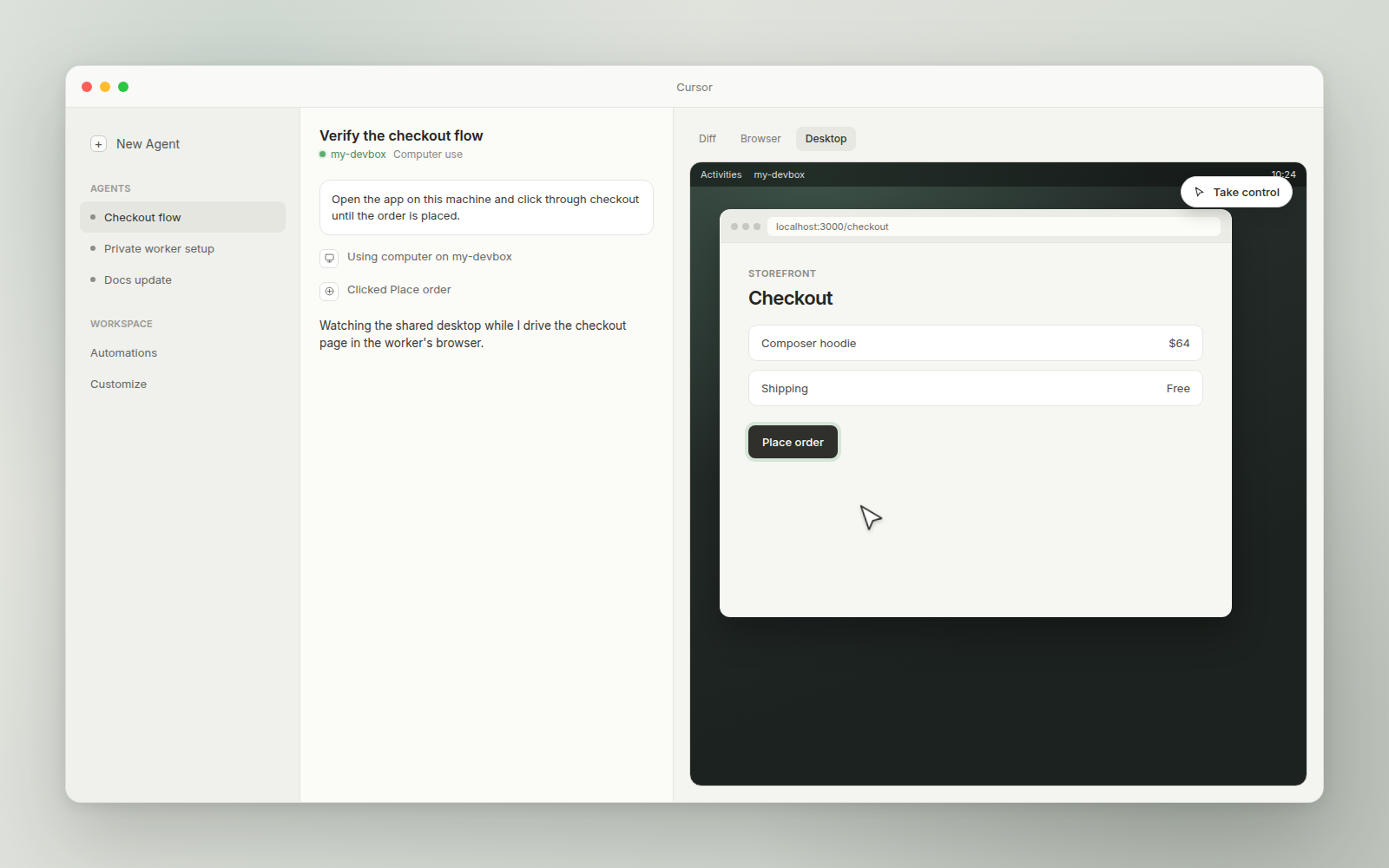
See Computer use for the full setup.
Next steps
- My Machines: configure workspace roots, authentication, and local MCP servers, or troubleshoot connection issues.
- Pools: enterprises usually manage a pool of machines instead of single workers. Set one up for your team.
- Computer use: the full setup for desktop and browser control.
- API reference: endpoints for workers, pools, the pending-request queue, and worker tokens.