My Machines
My Machines is the personal Self-Hosted Machines configuration. It lets a specific user run Cloud Agent tool calls on a machine they already use: a laptop, devbox, or remote VM. Use it when that machine is the desired execution environment for a repo.
A worker on your machine opens an outbound connection to Cursor. The agent loop runs in Cursor's cloud, but terminal commands, file edits, browser actions, and other tool calls execute on your machine. No inbound ports or firewall changes are required.
Cursor-managed Cloud Agents are the recommended path for most teams, including teams that need access to private networks. You can use network allowlists, Tailscale or similar clients, and private connectivity for supported source control paths without operating your own worker. See Choose where Cloud Agents run.
Use My Machines when you want to:
- Use a devbox or remote workstation that already has your repo and tools
- Execute tool calls on one user's machine for a specific repo
- Reuse machine-local state that you do not want to recreate in a cloud environment
- Try the worker model before building a centrally managed pool
For org-wide worker fleets, see Team Pools.
Quickstart
1. Install the CLI
# macOS, Linux, and WSLcurl https://cursor.com/install -fsS | bash# Windows PowerShellirm 'https://cursor.com/install?win32=true' | iexConfirm the CLI is available:
agent --version2. Sign in
For a personal machine, browser login is the easiest path:
agent login3. Start the worker
agent worker startKeep this process running while you use the machine. By default, a My Machines worker is long-lived: it stays connected until you stop it and can be reused for future Cloud Agent sessions.
4. Run an agent
- Go to cursor.com/agents.
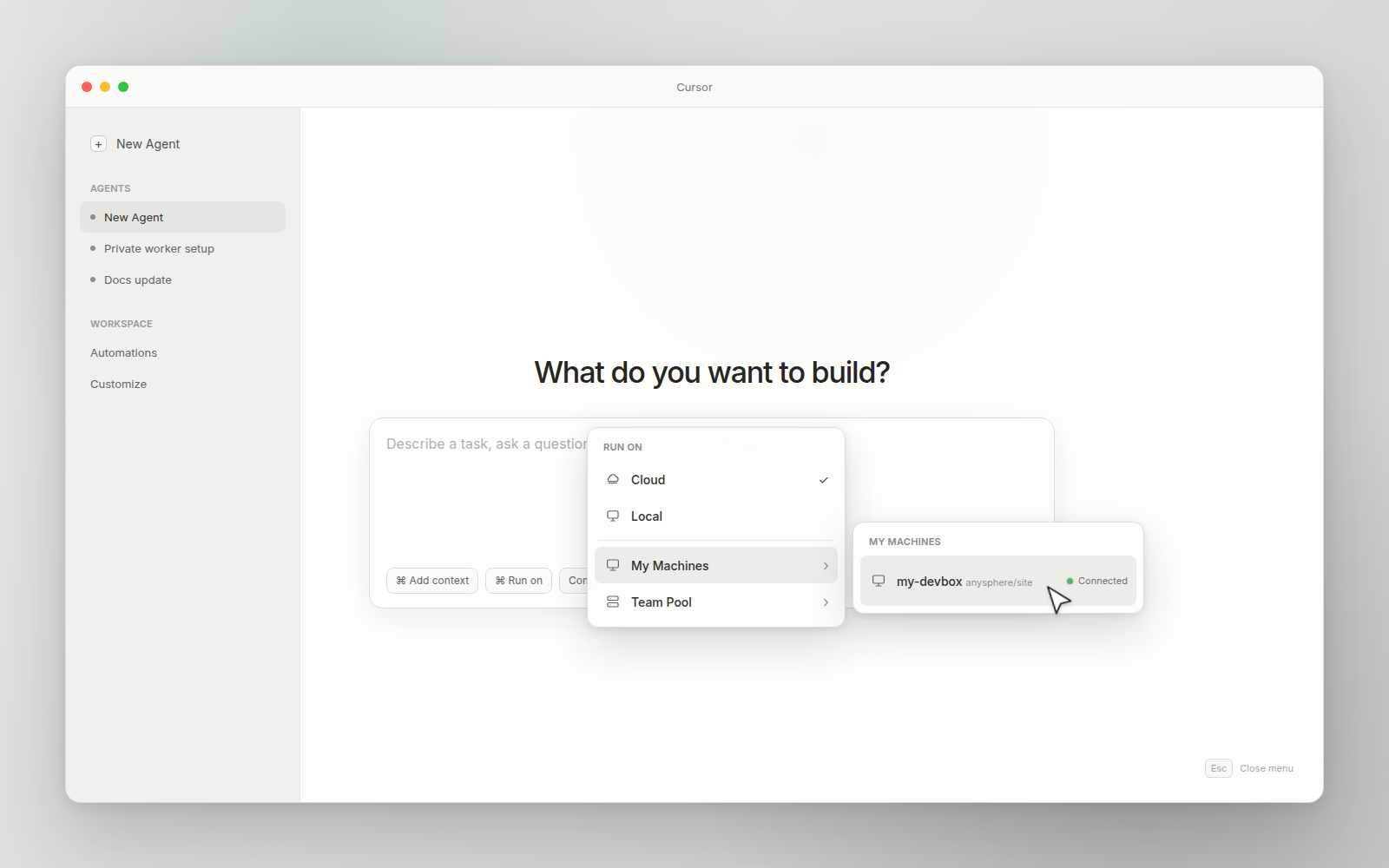
- In the menu that sets where the agent runs, select the machine under My Machines.
- Send a task.
Common options
Name the machine
Use a friendly name when you have multiple machines for the same repo:
agent worker start --name "my-devbox"Run from a different repo directory
agent worker start --worker-dir /path/to/repoRegister multiple repository roots by repeating --worker-dir:
agent worker \ --worker-dir "$HOME/repos/app" \ --worker-dir "$HOME/repos/infra" \ startEach path must exist. For each root with a Git remote, the worker registers routing metadata so Cursor can match requests to the correct checkout.
An agent you start on a machine with POST /v1/agents (env.type: "machine") gets one repo in repos. To start an agent with several repos, use an any-repo pool.
On your machine, a Cloud Agent environment sets only which repositories a run uses. The machine keeps its own tools, credentials, and network, and gets no dashboard secrets. See Environments on Self-Hosted Machines.
Use an API key
For devboxes or automation where browser login isn't practical, use a personal user API key from Cursor Dashboard → API Keys:
agent worker start --api-key "your-user-api-key"My Machines workers require a personal credential: browser login, a personal
user API key, or a user-scoped token. Service account API
keys only start pool workers
(--pool), and team Admin API keys and organization API keys can't start
workers at all. See Self-Hosted
Pool for
team-shared workers.
Use a user-scoped token
For self-managed per-user workers, mint a short-lived user-scoped token with POST /v1/sub-tokens, then start the worker with that token:
agent worker start --auth-token "your-user-scoped-token"For long-lived workers, read the token from a file:
agent worker start --auth-token-file /var/run/cursor/tokenThis is useful in Kubernetes because environment variables from Secrets are fixed when the pod starts. Secret volumes update while the pod runs, while mounted token paths can be live updated within the pod giving you the chance to refresh the token while the pod is running.
Mint identity tokens
Let claimed agents mint short-lived OIDC tokens by passing --identity-socket before start. The worker sets CURSOR_AGENT_SOCKET to the socket path. The token identifies the owner of that run. See OIDC tokens for the socket contract, the trust model, and AWS.
agent worker --identity-socket startEnable computer use
Let the agent click, type, take screenshots, and drive apps on this machine by passing --computer-use before start:
agent worker --computer-use --name "my-mac" startOn macOS, the first start installs the Cursor Computer Use helper app. Grant it Accessibility and Screen Recording in System Settings → Privacy & Security, then test with a task that takes a screenshot. On Linux, install the desktop packages first. See Computer use and desktop sharing for the macOS permission steps, MDM guidance, and the Linux display options.
Open the live workspace
On a Linux machine, pass --connect-workspace before start to open an agent's files, changes, terminal, and forwarded ports from the Cursor desktop app. It needs Cursor 3.25 or later and runs as your OS user. See Live workspace for who can open it and how to turn it off.
agent worker --connect-workspace startTrigger this machine from a chat surface
Use worker= or machine= when you want Slack, GitHub, or Linear requests to run on one of your named machines. These are the only trigger options that target My Machines.
Start the machine with --name, then include that name in the request:
- In Slack, use
@Cursor worker=my-devbox fix the flaky testor@Cursor machine=my-devbox fix the flaky test. - In GitHub, comment
@cursoragent worker=my-devbox fix the flaky testor@cursoragent machine=my-devbox fix the flaky test. You must be a trusted repo commenter, and the target machine must belong to the Cursor user linked to your GitHub account. - In Linear, mention
@Cursorin a comment to start the run. Cursor honorsworker=my-devboxormachine=my-devboxin the issue body only when that comment triggers the run. Cursor honors a parent label namedworkerormachinewith a child label namedmy-devboxonly for that same trigger. Assigning or delegating the issue to Cursor ignores the issue body and those labels.
How Cursor picks your machine
A worker=<name> request runs on a machine only when all three are true:
- The machine belongs to the Cursor user who triggered the request.
- The machine's
--namematches the requested<name>. - The machine's registered repo matches the trigger's target repo.
The trigger's target repo comes from the surface, not from the machine name:
- Slack uses
repo=in your message if present, then the channel default repo, your user default repo, then the team default repo. - Linear uses the repo resolved from the issue or project (for example
[repo=], issue labels, project labels, or the dashboard default). See Repository selection. - GitHub uses the repo of the issue, pull request, or review comment where
@cursoragentwas mentioned.
Each machine's registered repos come from the git remotes of its worker directories. To serve more than one repo from one machine, pass --worker-dir once per checkout, or start a worker in each repo's checkout.
When a worker= request can't run
If you have a machine with that name but it's registered for a different repo, Cursor rejects the request rather than running it on the wrong checkout:
worker=<name>is registered on your machine but for a different repository. Start the worker in a checkout of the target repo first.
The error appears as an ephemeral reply in Slack, an agent activity error in Linear, and a @cursoragent reply on GitHub for trusted commenters. The behavior is intentional: a request for repo A should never run on a machine checkout for repo B.
If no machine matches the linked user and target repo, the request fails instead of falling back to another environment. Confirm the machine name, your Cursor account linking, and the worker directory's git remote.
self_hosted, pool=, and repo= on their own don't target My Machines. Use them with Team Pool workers. When you pair repo= with worker=, it sets which repo Cursor matches against your machines.
Hooks
A My Machines worker runs the same hooks as other Self-Hosted Machines workers: command-based hooks from .cursor/hooks.json in the workspace you start the worker from. On Enterprise, it also runs team hooks and enterprise-managed hooks.
Hooks on Pools covers what applies on workers, including sessionStart and sessionEnd when a session claims and releases the machine. The Hooks reference covers the schema, events, and examples.
Artifacts
Artifact behavior is identical on self-hosted workers and Cursor-hosted agents. The agent produces the artifact inside the worker and the worker uploads it to Cursor-managed storage over HTTPS. Everything downstream (PR embeds, dashboard previews, notification attachments) is handled by Cursor's backend and doesn't depend on where the worker runs.
Artifacts are on by default. See Capabilities for what they look like in the UI.
To disable artifact uploads, block outbound traffic to agent-stores.s3.us-east-1.amazonaws.com and cloud-agent-artifacts.s3.us-east-1.amazonaws.com. Workers upload artifacts to the first host and use the second only when the agent's store isn't available, so blocking cloud-agent-artifacts alone doesn't stop uploads. The agent session keeps working; artifacts produced during the session fail to upload.
Networking
Workers need outbound HTTPS access to:
api2.cursor.shandapi2direct.cursor.shfor the agent sessiondownloads.cursor.comfor CLI updates and the first-time Cursor Computer Use install on macOSagent-stores.s3.us-east-1.amazonaws.comandcloud-agent-artifacts.s3.us-east-1.amazonaws.comfor artifact uploadscursor.blob.core.windows.netfor the live workspace server download, only on workers started with--connect-workspace
If your firewall can only match wildcards, *.s3.us-east-1.amazonaws.com covers both artifact hosts, but also opens every other bucket in the region. Prefer an exact-host rule when the firewall supports it.
No inbound ports, public IPs, or VPN tunnels are required. If you use a proxy, set HTTPS_PROXY or https_proxy in the worker environment.
Failure modes
| If you block... | Effect |
|---|---|
api2.cursor.sh or api2direct.cursor.sh | The worker can't start or continue an agent session. |
downloads.cursor.com | CLI updates and the first-time Cursor Computer Use install on macOS fail. A worker that already has both installed keeps running. |
agent-stores.s3.us-east-1.amazonaws.com and cloud-agent-artifacts.s3.us-east-1.amazonaws.com | Artifact uploads fail. PR embeds, dashboard previews, and notification attachments that depend on artifacts are missing. The agent session and other tool calls keep working. |
cursor.blob.core.windows.net | On workers started with --connect-workspace, the live workspace can't start. The agent keeps running. |
| An outbound host a specific tool or integration needs | Only that tool or integration fails. The agent continues. |
MCP servers
MCP servers are routed by transport type:
| Transport | Runs on | Use case |
|---|---|---|
| Command (stdio) | Your machine | The MCP process starts on your machine and can reach private networks, internal APIs, and local services. |
| HTTP / SSE (url) | Cursor backend | Cursor handles OAuth, session caching, and auth for HTTP-based MCP servers. |
If your MCP server needs to reach endpoints on your private network, use the command (stdio) transport. The process runs directly on your machine and shares its network. For HTTP-based MCP servers, Cursor manages the connection from its backend.
Authenticate (browser sign-in) works only for HTTP servers. Give a command server its credentials as environment variables in the server's env config. Edit personal servers from the MCP dropdown in cursor.com/agents, and team servers under Dashboard > Plugins & MCPs. See MCP tools.
Troubleshooting
Run a preflight debug report:
agent worker debugThis checks authentication, privacy routing, repo labels, and whether Cursor can see matching workers. To print the same diagnostics before starting the worker, use agent worker start --debug.
If the machine does not appear in the picker:
- Confirm the worker process is still running.
- Confirm the Cursor app and CLI use the same account.
- Check that the worker directory has the expected Git remote.
- Check outbound access to the hosts listed in Networking.
If the live workspace doesn't open in the desktop app, see Troubleshoot the live workspace.
If computer use fails on a Mac, the report confirms whether Cursor Computer Use is installed but not whether its permissions are granted. Grant Accessibility and Screen Recording to Cursor Computer Use in System Settings → Privacy & Security, then retry a screenshot task. See macOS.
Next steps
- Computer use: let agents drive a desktop and browser on your machine, and watch or control the agent desktop from Cursor.
- API reference: endpoints for workers, pools, the pending-request queue, and worker tokens.